Requirements
| Windows | Windows 10 or 11, 64-bit |
| Revit | 2023, 2024, 2025, 2026 or 2027. The setup installs the right build for each version it finds: .NET Framework 4.8 for 2023 and 2024, .NET 8 for 2025, .NET 10 for 2026 and 2027. |
| Navisworks | Navisworks Manage 2026 or 2027 |
| Rights | No administrator rights: everything installs for your Windows user. |
| Internet | For activation, then at least once every 14 days. |
Run the setup
- Close Revit and Navisworks. The setup checks and asks you to close them if they are running.
- Run GBIM_Addins_Setup_1.5.0.exe. Windows may warn about an unknown publisher the first time; choose More info, then Run anyway.
- Tick the add-ins. Add-ins for a program you do not have start unticked. Each Revit add-in goes to every Revit version found on the PC.
- Finish. The log is in %APPDATA%\GBIM\installer\install.log.
An earlier GBIM install is moved to %APPDATA%\GBIM\previous\<date-time> first, never overwritten. Your settings, rules, saved clash maps and logs in %APPDATA%\GBIM are kept.
First start
The first time Revit starts after the setup, it asks about each new add-in (Security – Unsigned Add-In, publisher could not be verified). Choose Always Load for each GBIM add-in so the question does not come back. Navisworks loads the GBIM tab without asking.
Where the buttons are
Revit: GBIM tab
Panels run left to right in the order of the work: coordination first, then views, checks, standards and export, with Flag and the Licence last.
Navisworks: GBIM tab
The Navisworks add-ins are opened from the GBIM tab only; they are not listed under Tool Add-ins.
Licence
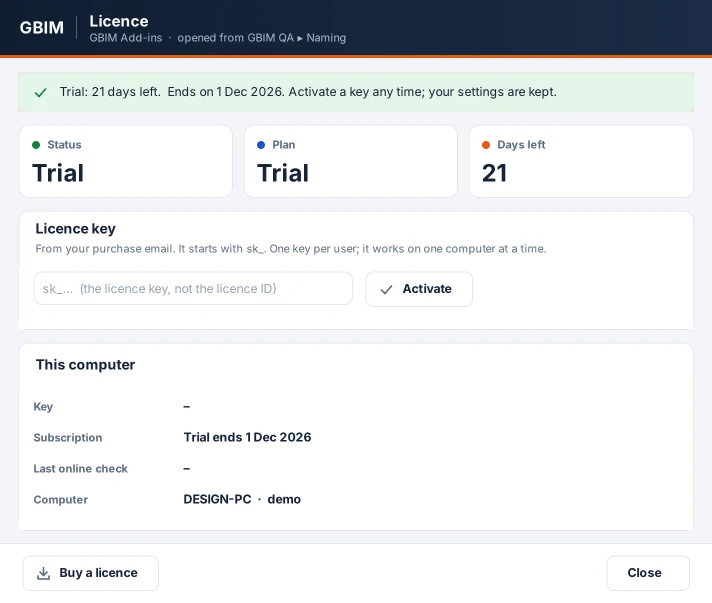
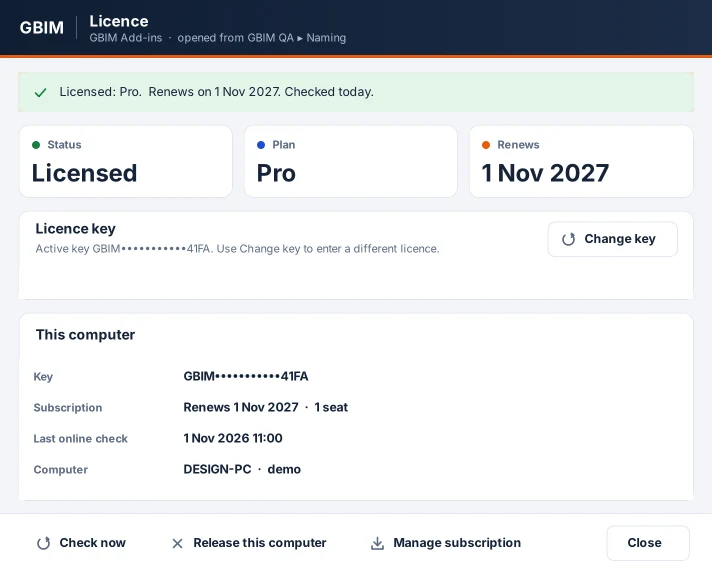
Every GBIM command needs a licence or the trial. One licence covers all the add-ins on the computer. If a command is not licensed, the Licence window opens by itself; you can also open it from GBIM ▸ Licence in Revit or Navisworks.
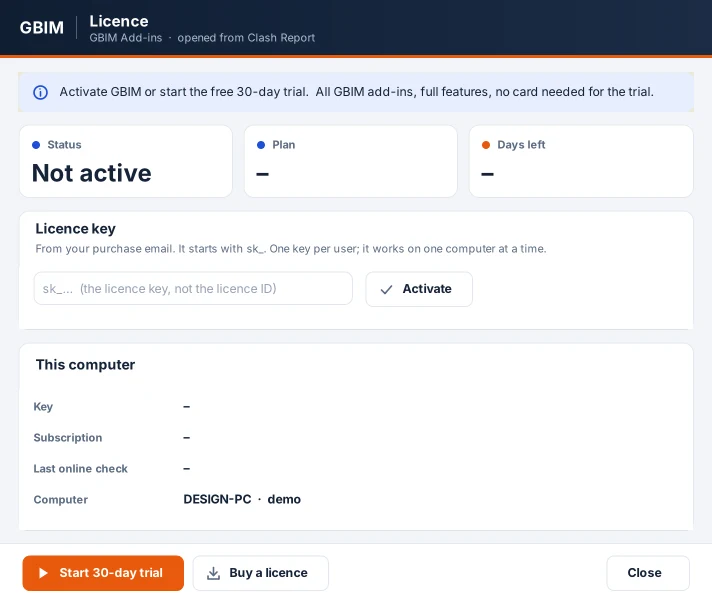
- Trial. Start the 30-day trial: every add-in and every feature, no card needed.
- Activate. Paste the key from your purchase email and click Activate. A key works on one computer at a time.
- Offline. The licence keeps working 14 days after the last online check, and re-checks in the background when you are connected.
- Move to another computer. In the Licence window choose Release this computer, then activate the same key on the new one.
Update and remove
- Update: run the new setup over the old one. The previous version is moved aside, not deleted.
- Remove: Windows Settings ▸ Apps ▸ GBIM Add-ins ▸ Uninstall. Only what the setup installed is removed; %APPDATA%\GBIM is kept.
- For IT: silent install GBIM_Addins_Setup_1.5.0.exe /S; silent removal "%APPDATA%\GBIM\installer\Uninstall GBIM Add-ins.exe" /S.