Model Health
Four read-only tools on GBIM ▸ Model Health. They share one results window: status tiles at the top (Score, Fail, Warn, OK, Info), the checks, and the elements behind the selected check.
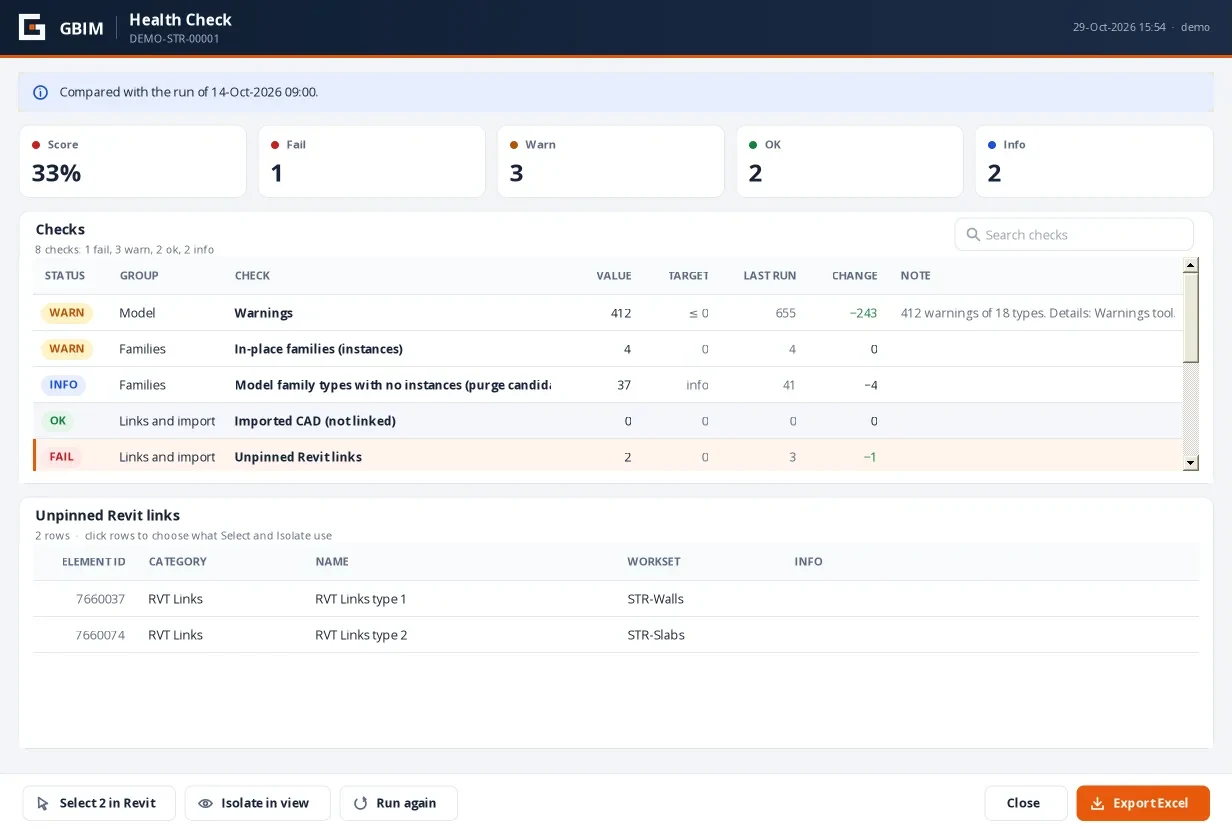
| Tool | What it reports |
|---|---|
| Health Check | Warnings, in-place families, Generic Models, unused types and families, groups, imported and linked CAD, unpinned links, imported line patterns, unused view templates, views not on sheets, unplaced and unenclosed rooms, unnamed reference planes, design options, worksets and Workset1, element count and file size. |
| Warnings | Every warning type with its count and elements, the top categories per type, and the worksets with most warnings. |
| Views & Sheets | Views not on sheets, copies and default names, views without templates, empty sheets, sheets with blank title-block fields. |
| Links & Coords | Links pinned and loaded, link position against shared coordinates (mm and degrees), base and survey points, grids and levels pinned and on their workset. |
Select in Revit, Isolate in view (temporary; reset with Revit's Reset Temporary Hide/Isolate), Run again, and Export Excel… (Scorecard, Details and a History sheet with one column per earlier run). The score is the share of checks with a target that pass.
The rules workbook
The Standards tools read one Excel workbook of rules in %APPDATA%\GBIM\QA\Rules. The first time, a generic Sample project workbook is written there to start from.
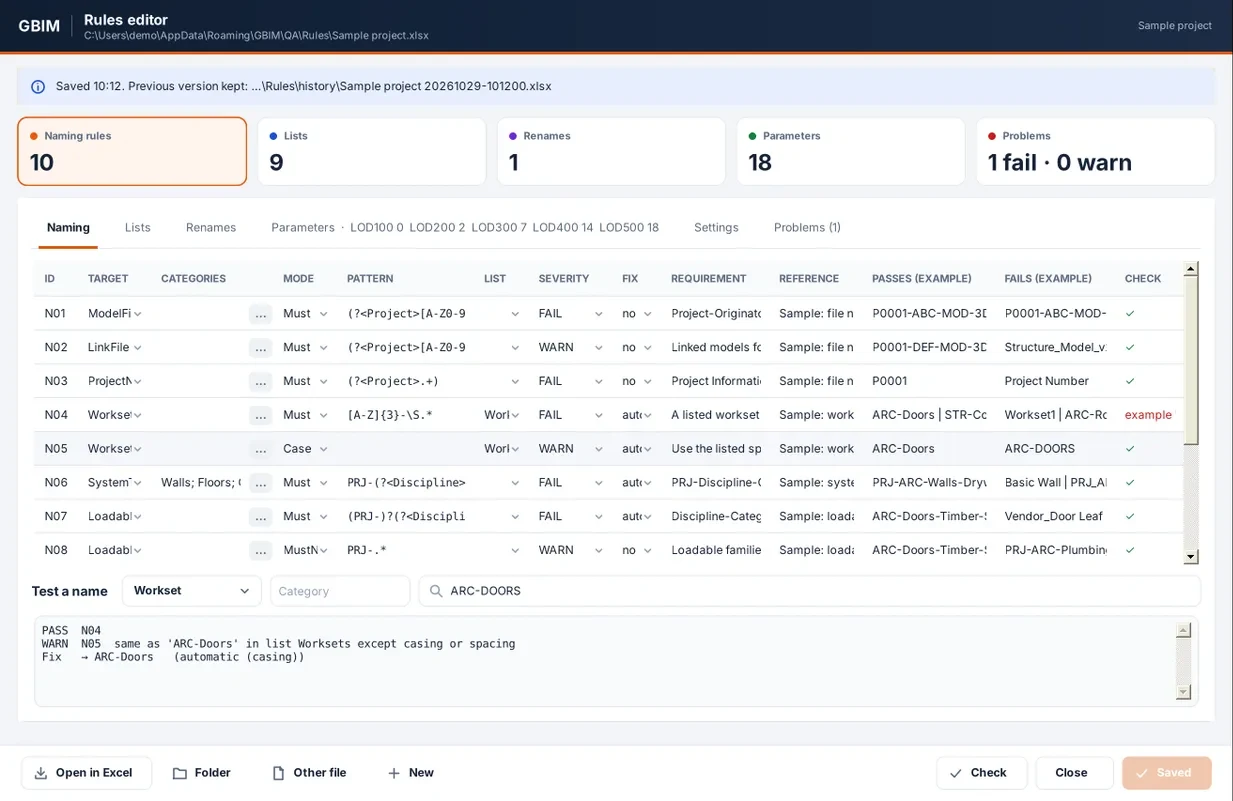
- Naming rules: target, categories, Must / MustNot, a pattern, lists for codes, severity and the fix to offer.
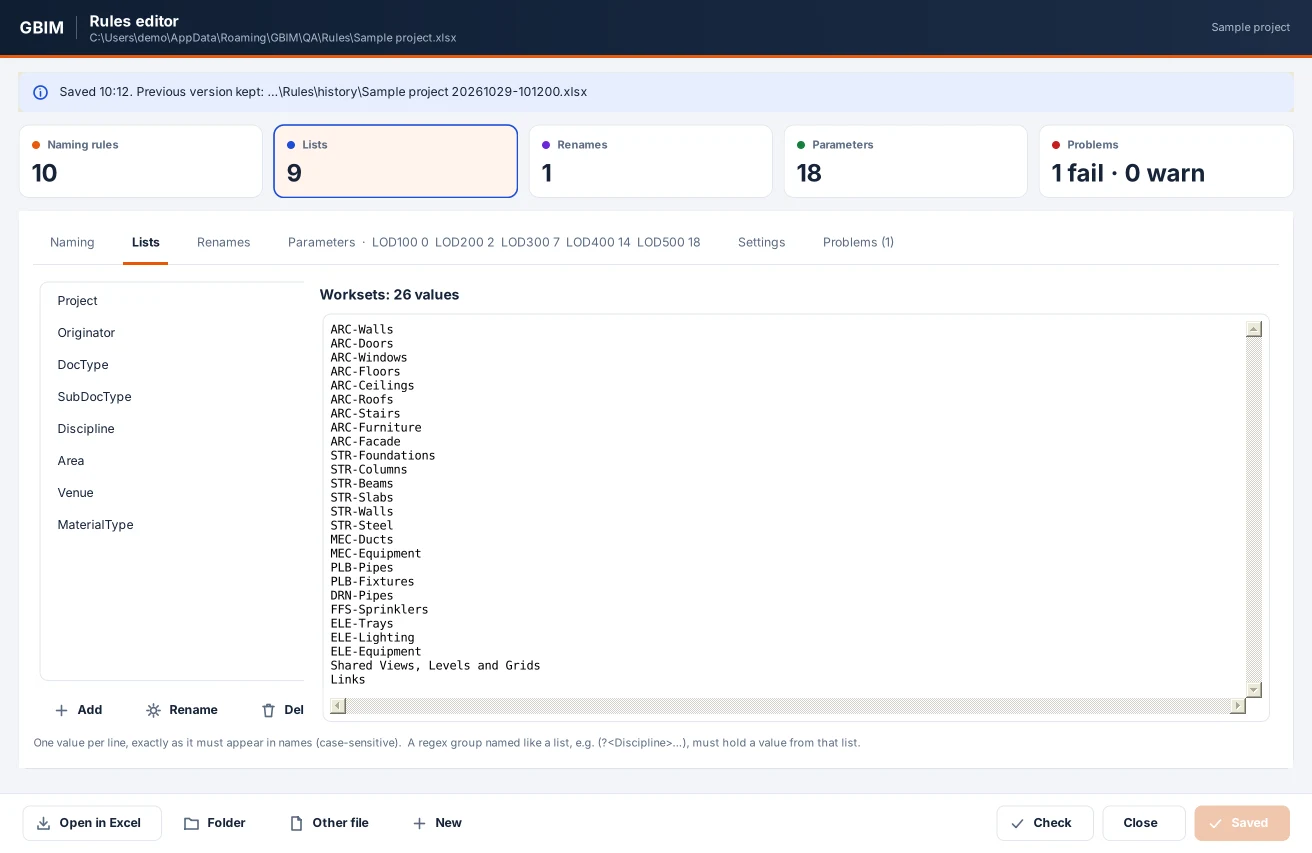
- Lists: the allowed codes (project, originator, discipline, area…). Renames: explicit From → To pairs.
- Parameters: one row per required parameter with aliases, Instance/Type, data type and an X per LOD.
- Settings: default LOD, the fail threshold, and the Cleanup protection pattern.
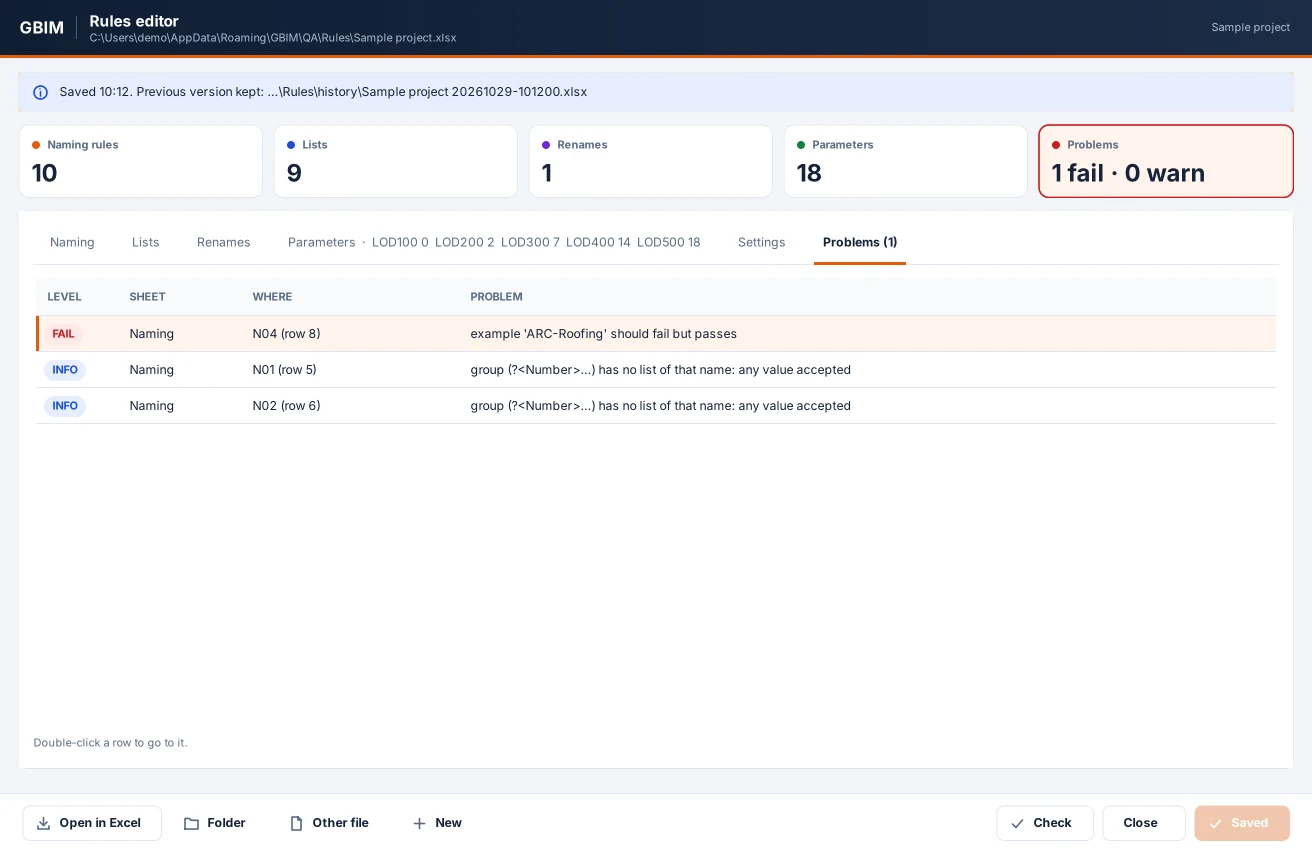
Edit in Revit (GBIM ▸ Rules, with a live Test a name box and Check) or in Excel (every column has a drop-down and a note). Saving from the editor writes a new version; the old file moves to Rules\history. New blank template gives an empty workbook with a Read me and examples for a new project.
Naming and safe rename
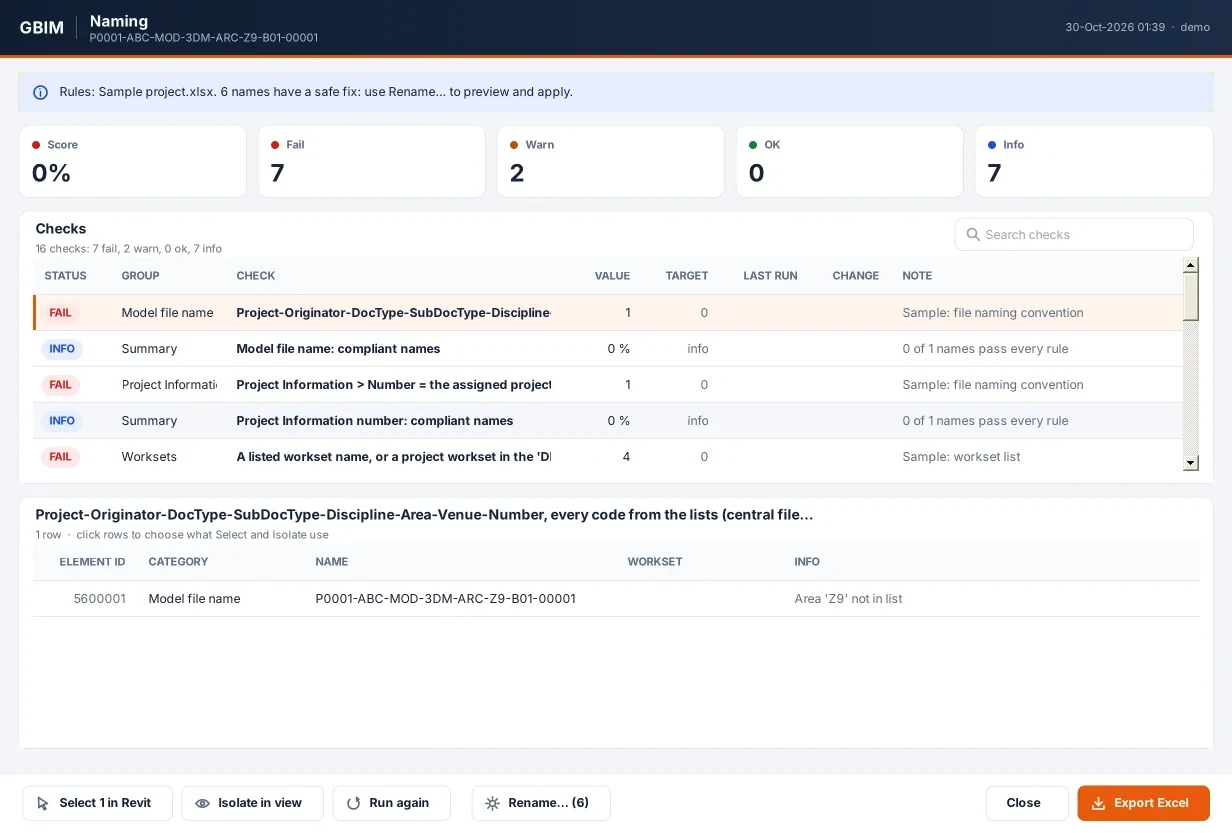
GBIM ▸ Standards ▸ Naming checks the model file, link files, the project number, worksets, system types, loadable families, tags and materials (and views, sheets, levels and grids if you add rules). Rename… (n) offers only safe fixes:
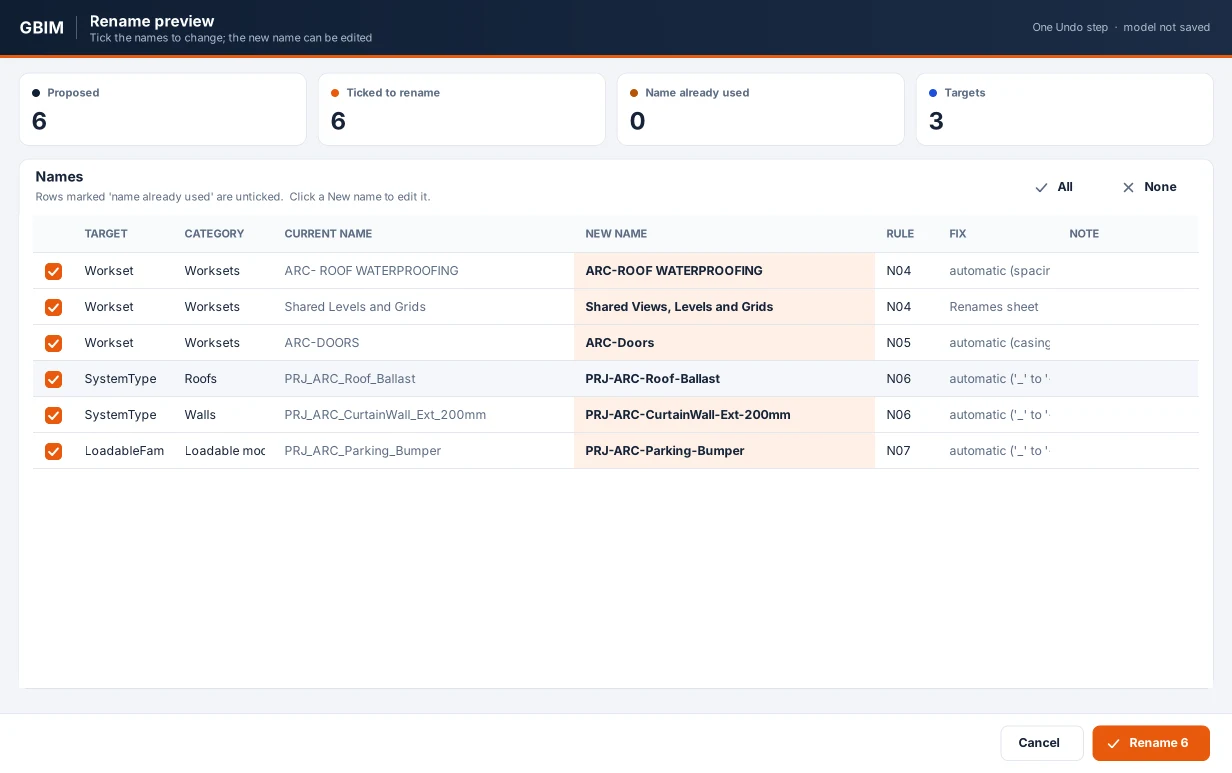
- An explicit rename from the Renames sheet, or the first automatic fix that passes: spacing around hyphens, _ to -, the spelling from a list.
- Never worse: a proposed name must not fail any rule the current name passes. Names already used elsewhere are shown unticked.
- Apply: tick rows (edit a name if you like) and apply as one Undo step. In a workshared model, everything is checked out in one request; items owned by others are skipped and named.
Parameters and colour
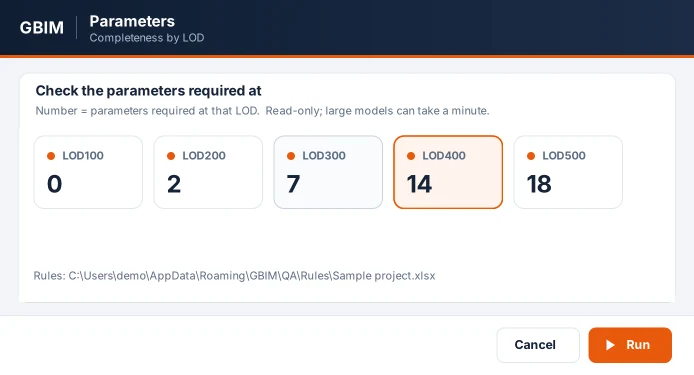
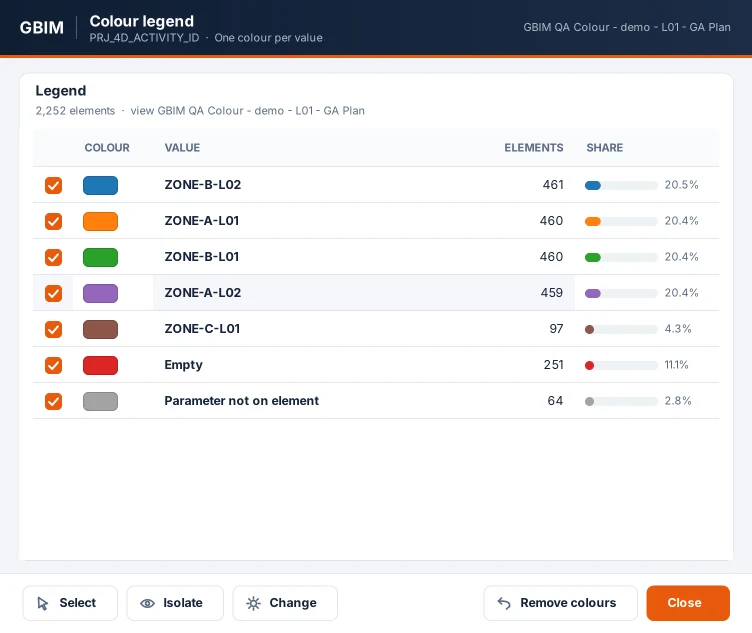
Parameters asks for the LOD, then reports for every required parameter the share of elements with a valid value, and lists the empty, invalid and missing ones. Colour by Parameter colours a copy of the active view (GBIM QA Colour - <user> - <view>): filled or empty, rule check, or one colour per value. The original view is never changed.
Safe Cleanup
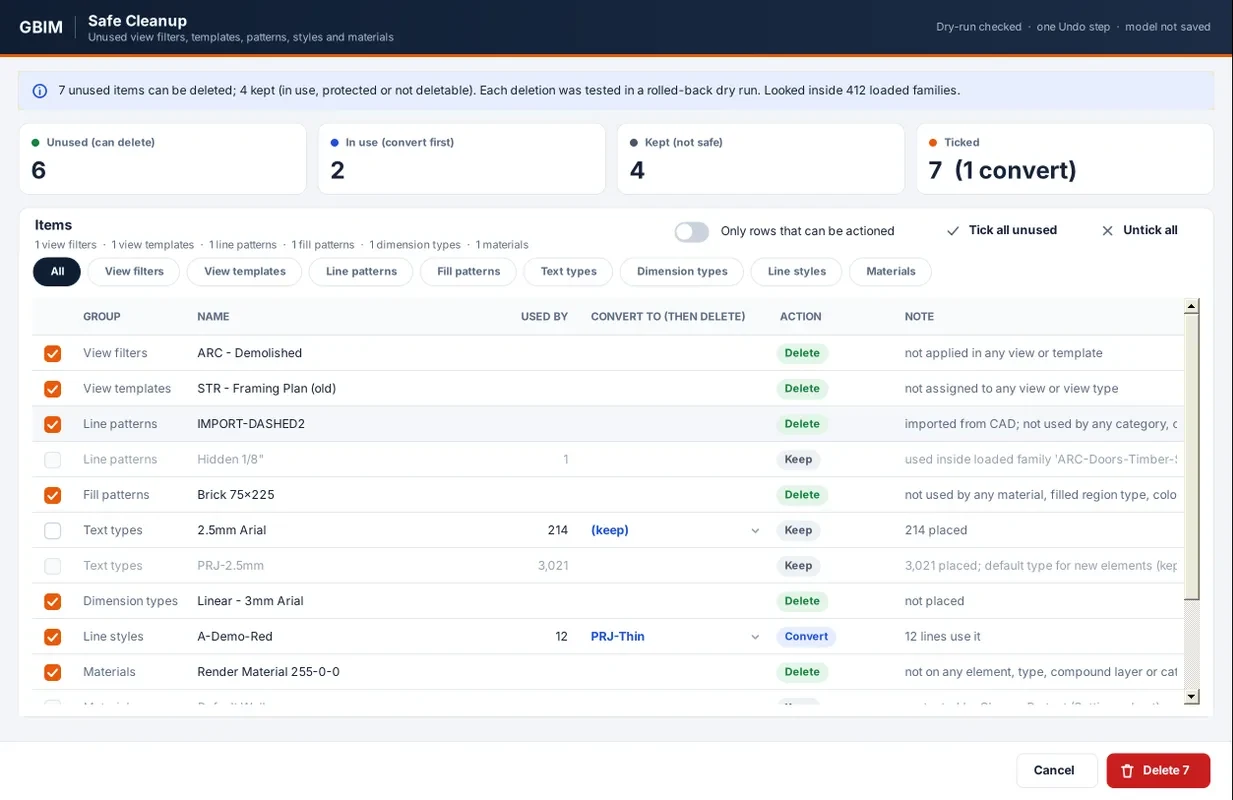
Unused view filters, view templates, line and fill patterns, text and dimension types, line styles and materials, each with what uses it. Before anything is offered, every item is test-deleted and rolled back: if the deletion would take other elements or views with it, the item is kept and the note says why. Used text, dimension and line styles can be converted to another style first.
- Protected by default: the default types, solid fill, and names matching the protection pattern in Settings.
- Inside families: you can let the tool open loaded families in memory (never saved) so patterns and materials they use are kept.
GUID Audit
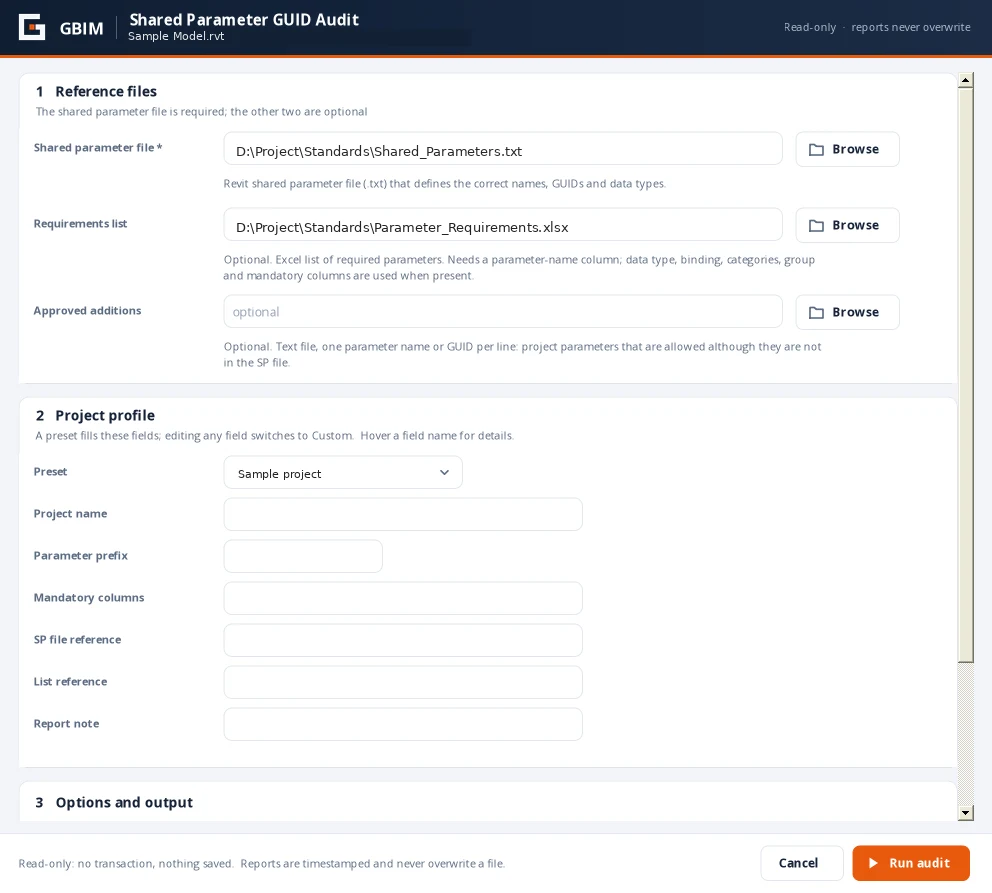
- GBIM ▸ Parameters ▸ GUID Audit. Pick the reference shared parameter file (.txt).
- Optional: the requirements list (.xlsx, any layout with a parameter-name column) and an approved-additions file.
- Profile: a preset or your own project name, parameter prefix and mandatory columns.
- Run audit. A timestamped Excel register ranks findings Critical, High, Medium and Low: wrong GUIDs, one name under two GUIDs, wrong data type or binding, unknown shared parameters, near-duplicate names.
The audit is read-only: no transaction, nothing saved; families are opened in memory and closed without saving.